[ Your Mac mini ]
Keep your Mac mini running.
Set the Mac mini that runs your team to stay awake, restart after a power cut, and stay protected.
Your team only works while the Mac that runs it is on and logged in. These settings keep it that way. They're macOS settings, not part of ReddropAI, so you set them once in System Settings.
Stop it going to sleep
- Open System Settings from the Apple menu.
- Choose Energy in the sidebar.
- Turn on Prevent automatic sleeping when the display is off.
- Turn on Wake for network access.
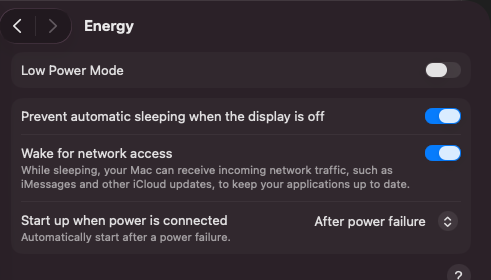
macOS System Settings, Energy: sleep prevention and wake for network access on, and start up after a power failure
The screen can still turn off to save power. Only the Mac itself needs to stay awake.
Restart after a power cut
In the same Energy page, set Start up when power is connected to After power failure. After a blackout, the Mac switches itself back on when power returns.
Turn on FileVault
FileVault encrypts everything on the Mac's disk, so if the Mac is stolen, nobody can read your files or logins without your password. We recommend it for every Mac that runs a team.
- Open System Settings › Privacy & Security.
- Scroll to FileVault and turn it on.
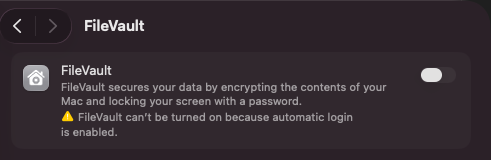
The FileVault switch in System Settings. Here it can't be turned on because automatic login is on. - Choose how to recover the disk if you forget your password. Write the recovery key down and keep it somewhere safe, away from the Mac.
If FileVault says it can't be turned on because automatic login is enabled, turn off automatic login first in System Settings › Users & Groups.
FileVault or automatic login: pick one
macOS won't let you have both. It's a trade-off:
- FileVault on (recommended): your files and logins are protected if the Mac is stolen, but someone must type the password after every restart.
- Automatic login on: the Mac logs itself in and your team carries on after a power cut with nobody there, but anyone who takes the Mac can read everything on it.
For a Mac that holds client logins, choose FileVault and a UPS.
After a restart
With FileVault on, someone has to type the Mac's password at the login screen after every restart, including after a power cut or a macOS update. Plan for who does this: you, a staff member, or us if we look after your Mac. Once you're logged in, ReddropAI opens by itself and your team carries on.
Keep it logged in and open
- Keep the Mac logged in to your user account. Locking the screen is fine; logging out stops your team.
- Keep ReddropAI open. Closing its window is fine; quitting the app stops your team.
- Leave macOS updates set to install automatically overnight, or install them yourself when it suits you. Either way, log back in afterwards.
Checklist
- Mac mini plugged in, ideally through a UPS.
- Wired network (ethernet) if possible. It's more reliable than Wi-Fi.
- Sleep prevention and wake for network access on.
- Start up when power is connected set to After power failure.
- FileVault on, with the recovery key stored safely.
- Tailscale installed if you want to reach it from outside the office: see Reach your Mac mini from anywhere.